
Branches and build configurations
A connected repository builds nothing until you tell Build Stream which branches to watch and what to build from them. That happens in the Branch Configuration table on the repository's card: one row per branch, with a version, a schedule and a set of build configurations. This page walks the table column by column, then covers the warnings the table can show and the one limit every provider shares.
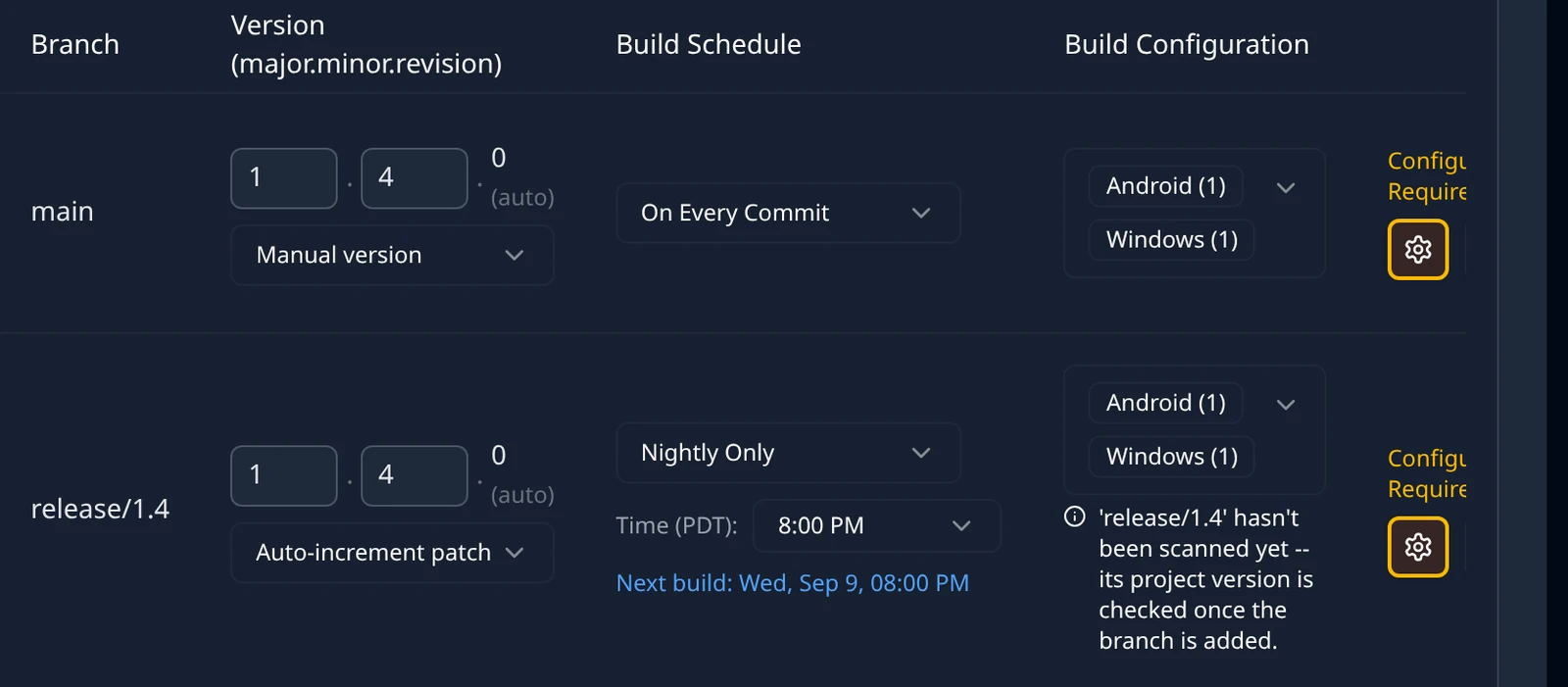
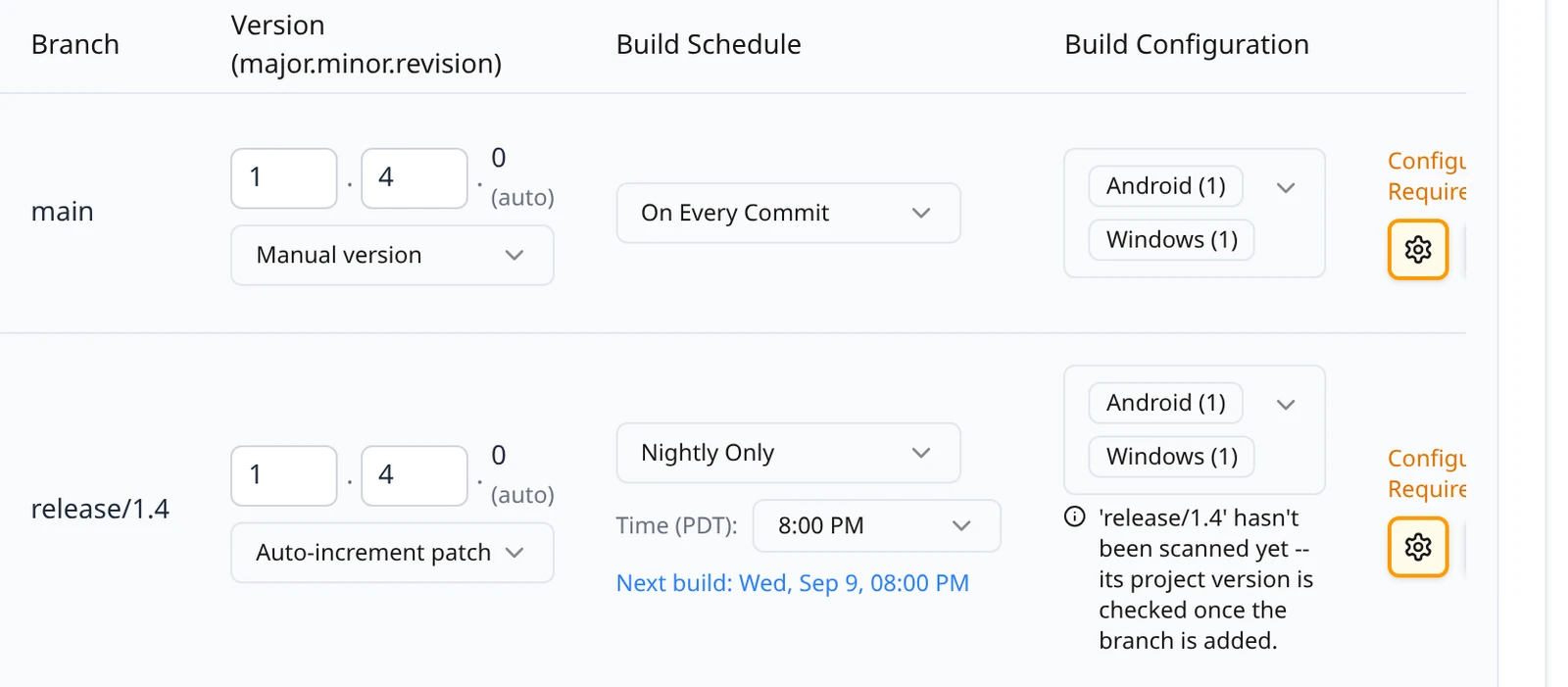
Open the Connections page, find the repository card and click Config (for a GitHub App connection the button reads View Branches). The table has four columns: Branch, Version (major.minor.revision), Build Schedule and Build Configuration. The line above it, Edits to existing branches save automatically., is the rule for the whole table: once a row is confirmed, every change you make to it is saved as you make it, and a green Saved flashes under the control you touched.
Add a branch
Click Add Branch
Add Branch sits under the table. It adds a draft row with an empty branch, the version
0.0.0, On Every Commit and no build configurations. A draft row lives only in your browser until you confirm it.Choose the branch
For GitHub and Bitbucket connections the Branch cell is a picker with the placeholder Select branch, listing the repository's branches minus any already in the table. Choose
mainorrelease/1.4. For a Diversion connection the cell is a text field with the placeholder branch-name; type the name exactly as the provider sends it. A name that is already in the table outlines the cell in red, and confirming it raises the toast Duplicate Branch.While a GitHub App connection loads its branch list the picker reads Loading branches.... If the list cannot be fetched it reads Branches unavailable with the reason underneath, and once every remote branch has a row, Add Branch itself is disabled with the hover text All remote branches already have configurations.
Set the base version
Type the version the branch starts from into the field with the placeholder base-major-minor-revision, for example
1.4.0. What it means and how it advances is in Version.Pick at least one build configuration
Open the Build Configuration picker and choose what to build; the picker is described in Build configurations. A draft row cannot be confirmed without one: the toast Build Configuration Required says Select at least one build configuration for branch "main" before confirming.
Confirm
Click Confirm at the end of the row. The toast Branch Added confirms it, the row re-renders as a confirmed branch, and from then on its edits save automatically. Set the schedule after confirming, on the live row; a schedule chosen on a draft row is not part of what Confirm saves.
If you are creating the repository and the branch in one go, the card's Create button also saves any draft row that has a branch name and a version, and reports Branches Added. Rows added that way can be saved without a build configuration, so check each one afterwards; a branch with no configurations records commits but never builds.
Delete on a draft row discards it. On a confirmed row it removes the branch from Build Stream immediately, with the toast Branch Deleted; the branch in your repository is untouched, and builds already made from it stay on the Builds page.
Version
Every build carries a version, shown on the Builds page as Version v1.4.0 and stamped into the artifact where the toolchain supports it. The Version (major.minor.revision) column decides it per branch.
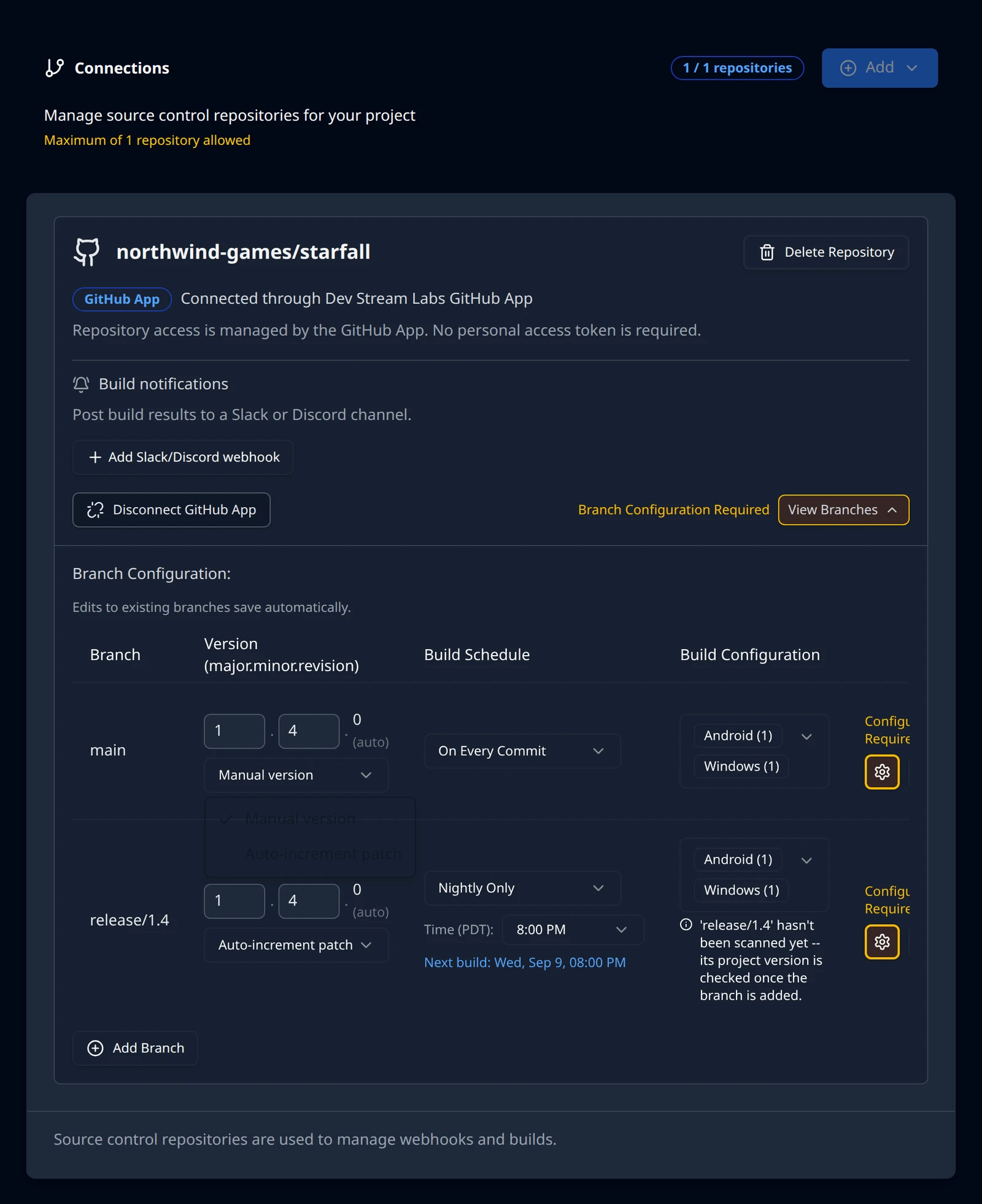
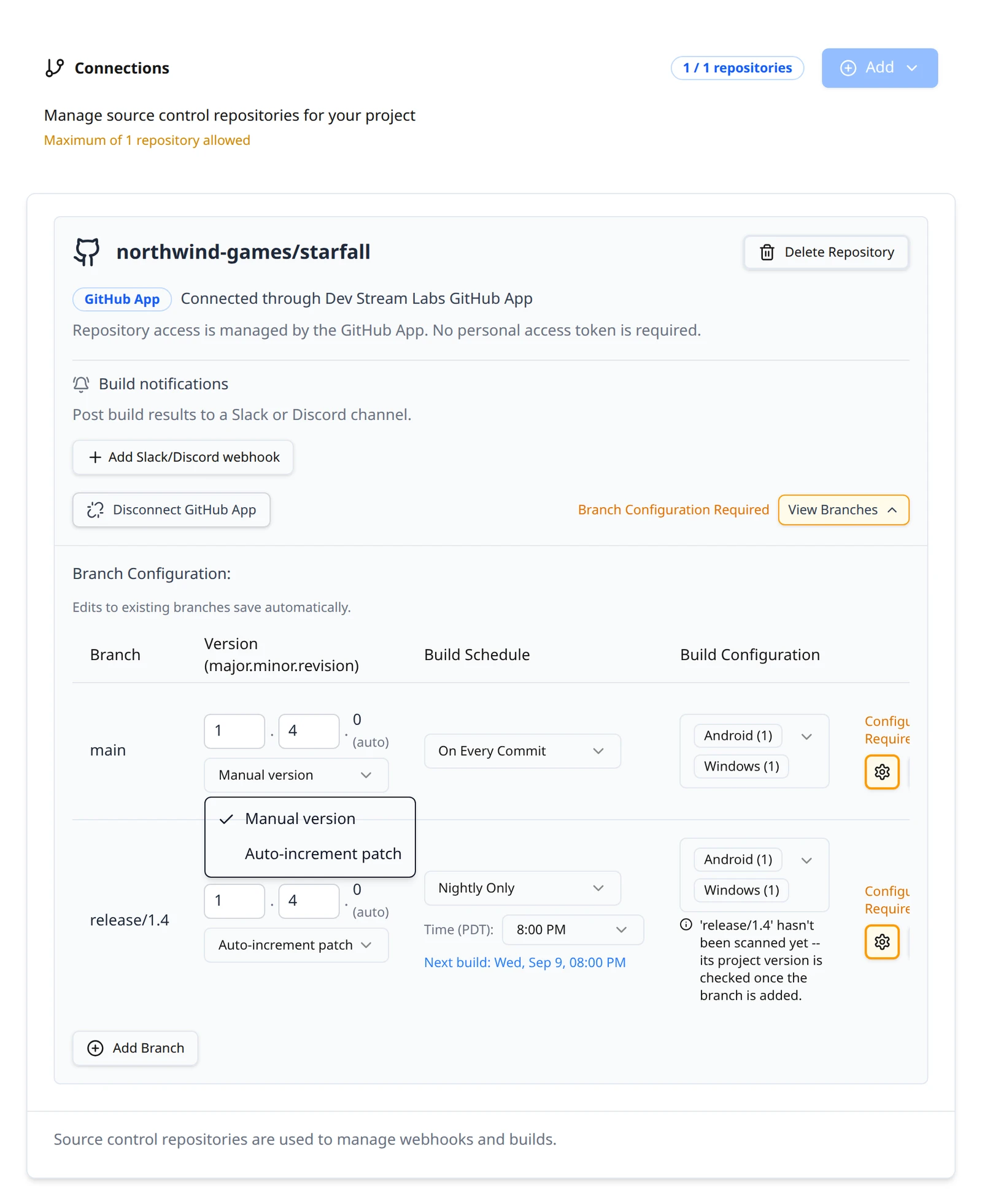
On a confirmed row the cell splits into three parts. Major and minor are small number fields you edit in place; the change saves when you leave the field. The revision is shown with (auto) next to it and cannot be typed into: hovering it explains Revision advances automatically with builds. Changing major or minor resets the revision to 0, so the next build of a branch you moved to 1.5 is 1.5.1.
Below the numbers a select chooses the versioning mode:
| Mode | What happens |
|---|---|
| Manual version | The default. The version changes only when you edit major or minor. Builds still carry the auto-advancing revision. |
| Auto-increment patch | Every build bumps the patch component, so consecutive builds of the branch are numbered without you touching the row. |
For a GitHub App connection the draft row offers a picker instead of a text field, filled from the repository's GitHub Releases: Loading releases... while it fetches, then Select release listing each release tag, with a leading v stripped from the version it sets. If the repository has no releases the field falls back to text with the placeholder No GitHub Releases found, and if the fetch fails the row says Unable to load GitHub Releases. You can still enter a version manually. Bitbucket, Diversion and token-based GitHub connections always use the text field.
Build schedule
Build Schedule decides when a recorded commit turns into a build. Three options:
| Option | When builds start |
|---|---|
| On Every Commit | Each push that reaches Build Stream starts a build of the branch's configurations. The default. |
| Nightly Only | Once a day at the time you choose, and only if the branch has a new commit since the last build. |
| Weekly Only | Once a week on the day and time you choose, on the same new-commit condition. |
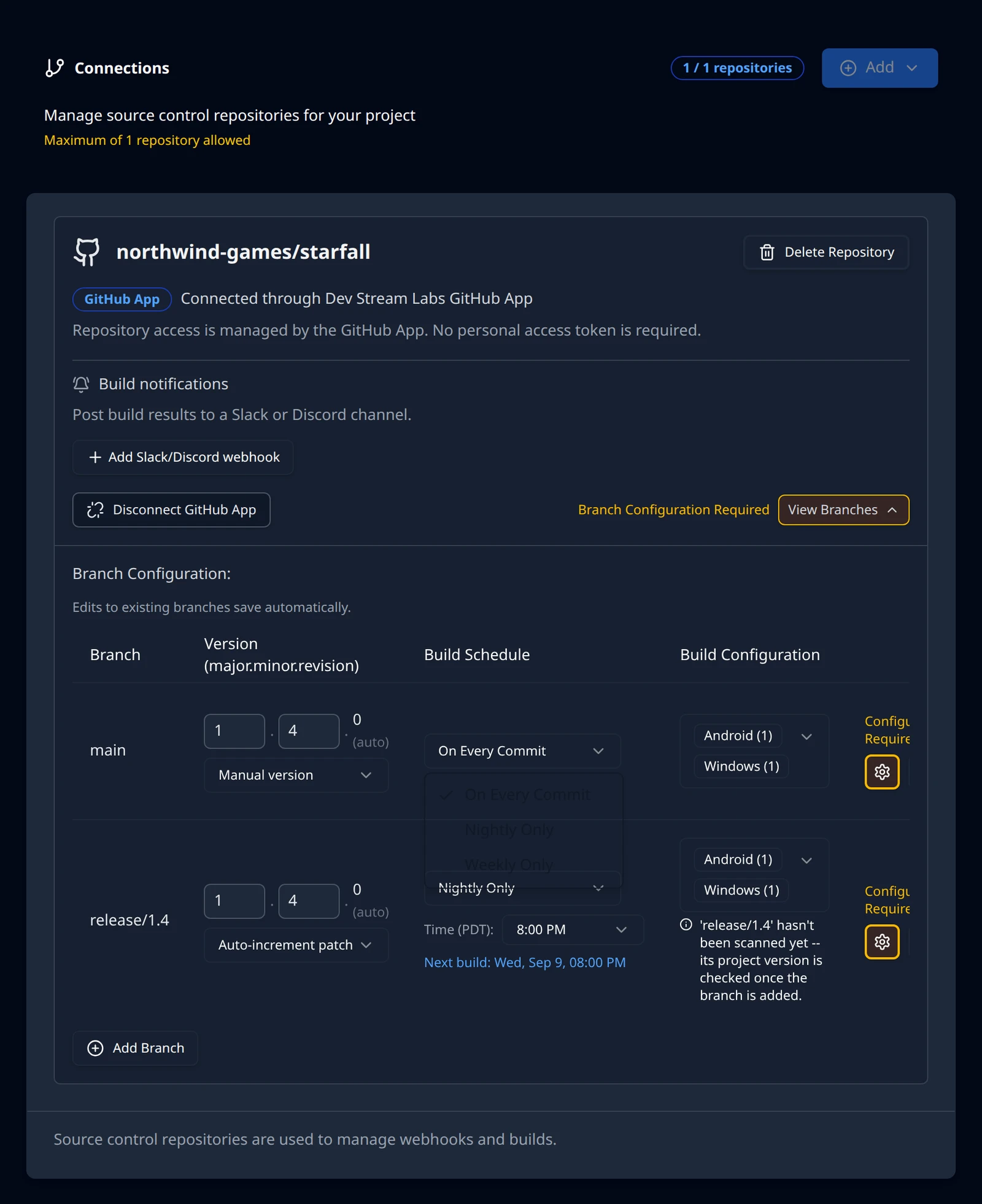
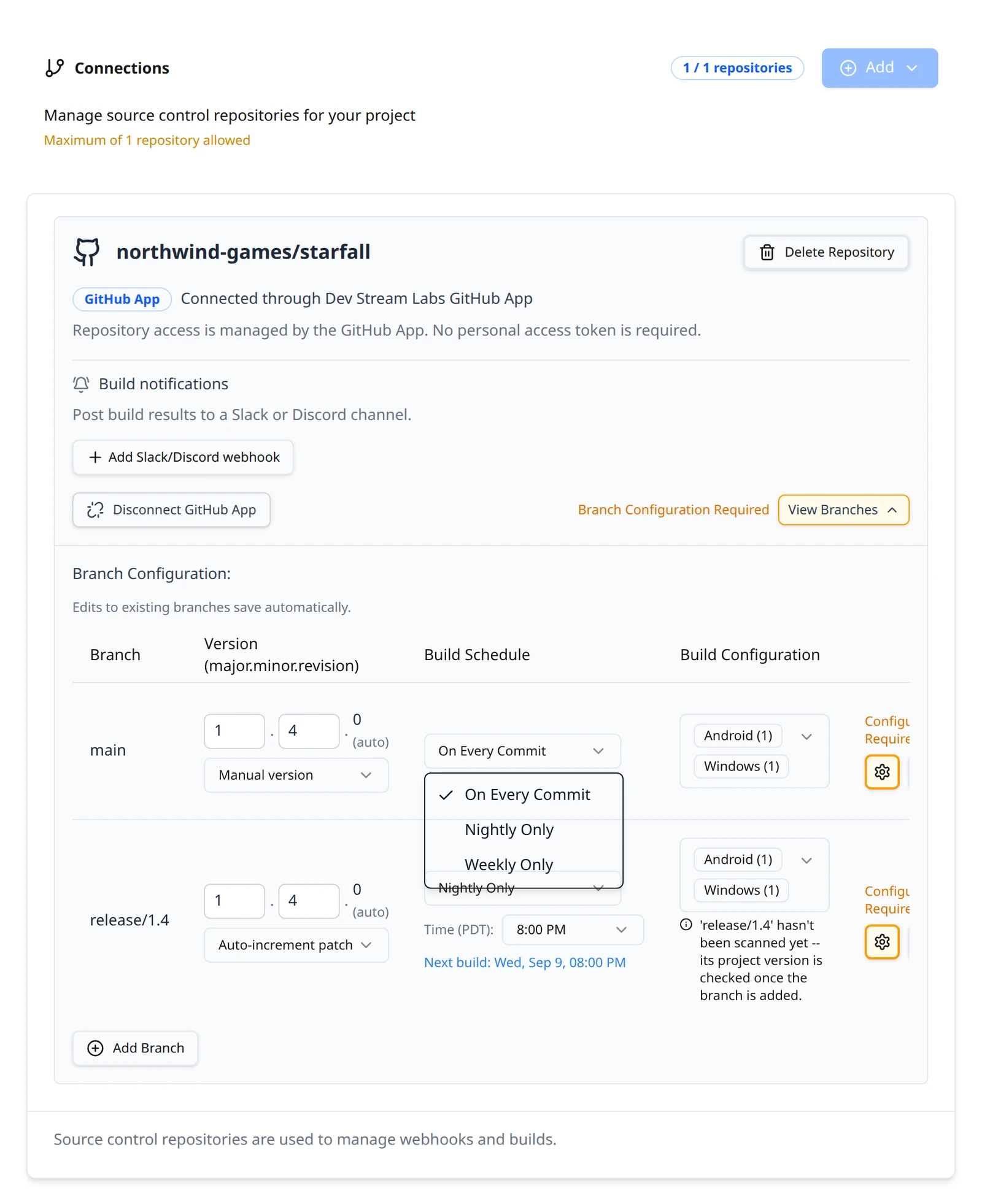
Choosing Nightly Only or Weekly Only reveals a time control labelled Time (PDT): with the placeholder Select time. The zone in the label is the one your browser is in, and the list runs in half-hour steps through the day; the time is stored in UTC and shown back in whatever zone the viewer is in. Weekly adds a Day: select from Monday to Sunday. Each choice saves on its own and flashes Saved beneath the select.
Build configurations
A build configuration is a platform and a flavour, named platform-flavour: win32-release, android-release, ios-debug. Each one a branch selects becomes a separate job on every build, routed to a build machine that can produce it. The Build Configuration cell shows the current selection as chips grouped by platform, such as Windows (1); click the cell to open the picker.
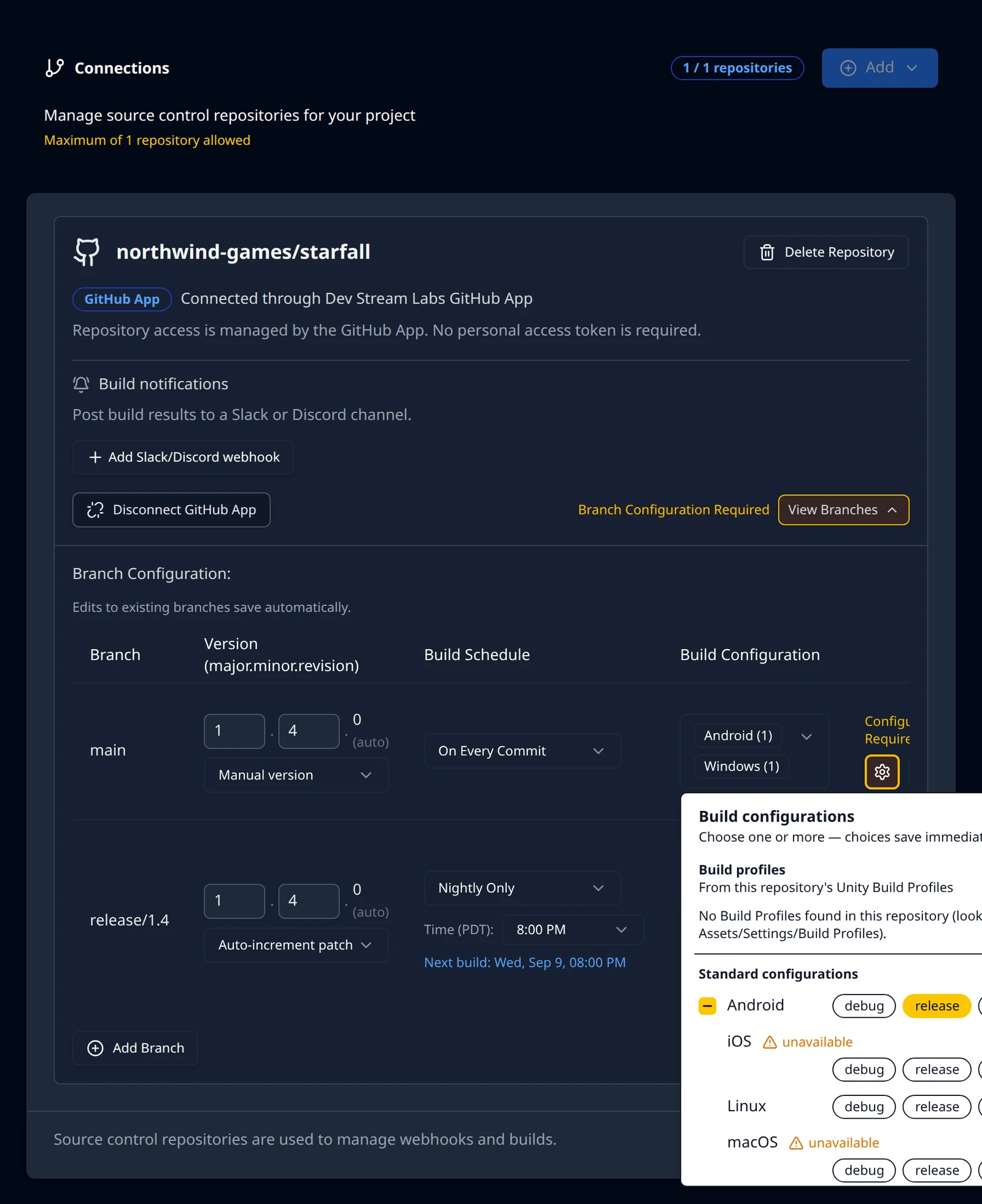
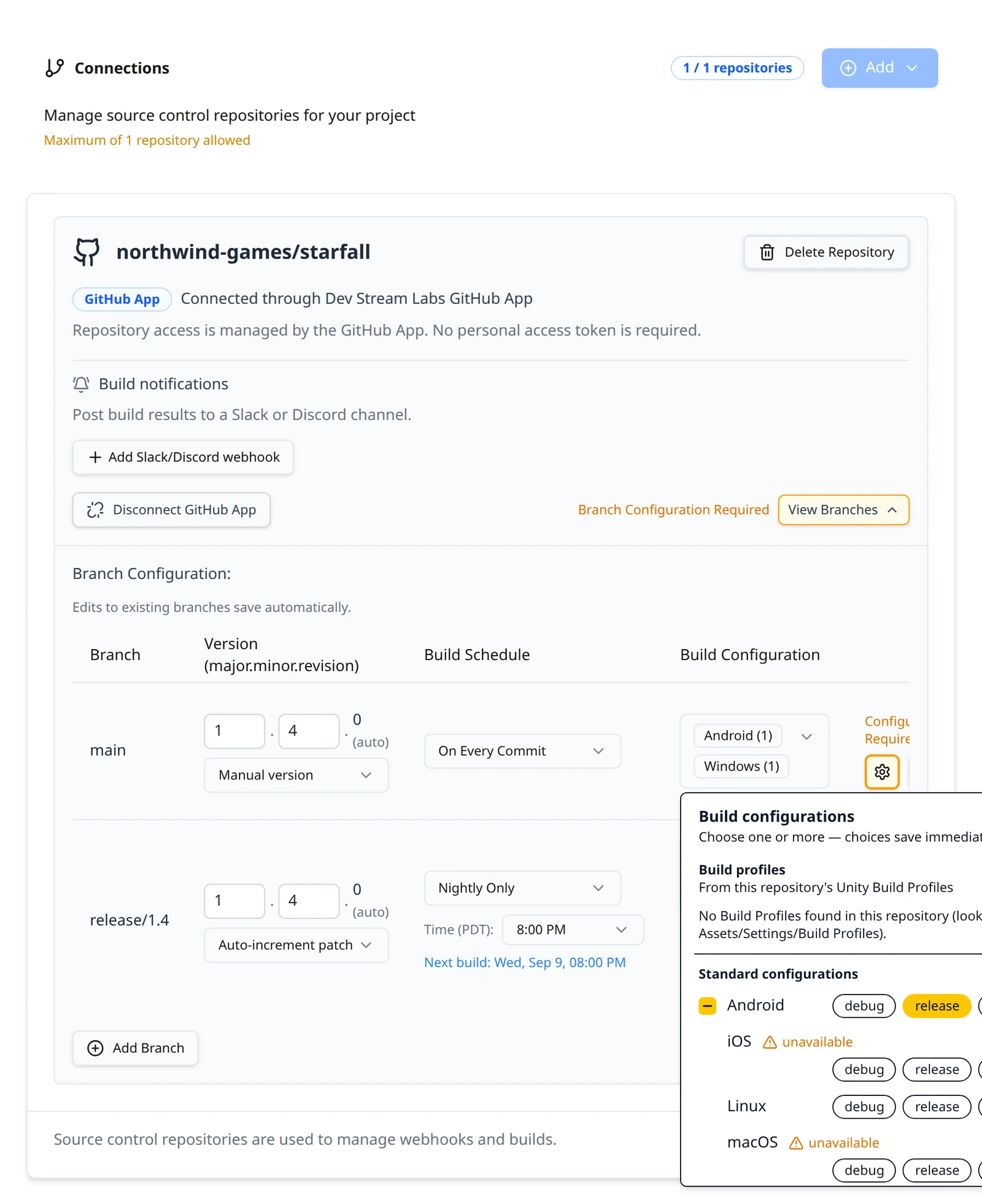
The picker is headed Build configurations and Choose one or more; on a confirmed row the line continues to say that choices save immediately. Each platform is a row with a checkbox that selects all of its flavours, and one chip per flavour:
| Platform row | Flavours | Notes |
|---|---|---|
| Android | debug, release, shipping | release and shipping need a keystore; see Signing: Android. |
| iOS | debug, release, shipping | Needs signing; see Signing: iOS. Built on the macOS builders. |
| Linux | debug, release, shipping | |
| macOS | debug, release, shipping | Built on the macOS builders. |
| WebGL | debug, release, shipping | Unity only. |
| Windows | debug, release, shipping | The wire name is win32, as in win32-release. |
| PlayStation, Switch, Xbox | Listed below a divider and marked Coming soon; they cannot be selected. |
Selections on a confirmed row are saved as you click, with Saved flashing under the cell. Selecting a non-debug Android configuration marks the card's Config button amber with Branch Configuration Required until the signing details are saved; that is covered on Signing and notifications.
Farm availability warnings
The picker knows what the build farm can produce right now for your project's toolchain and version, and says so rather than letting a build fail an hour later. Nothing appears when everything selected is buildable. When something is not, two kinds of text can show up.
On the platform row itself an amber unavailable marker appears; hovering it gives the reason. The row stays selectable, because farm gaps are usually temporary and a machine rebooting should not remove a platform from your menu. The reason is one of:
| Reason shown on hover | What it means |
|---|---|
| No macOS builder has Unity 6000.1.5f1 installed | Machines for that platform exist, but none has your toolchain version. The install may be queued. |
| No macOS builder on the farm | There is no machine for that platform at all right now. |
| A macOS builder is installing Unity 6000.1.5f1 | An install is in progress. Wait; it usually completes within the hour. |
| The macOS builder is offline | The machine exists but is not connected. Usually transient. |
Above the rows a summary states the effect on your selection once, for example 1 of 2 selected configurations can't be built with Unity 6000.1.5f1, followed by the remedy where one exists: a newer installed version that builds all of them, with a change version link where the version is a project setting, or install Unity 6000.1.5f1 on a macOS builder where the fix is an install. When the project pins its own version in the repository the summary says so instead: This project pins Unity 6000.1.5f1 in ProjectVersion.txt; builds use that version or the closest newer installed patch.
A different, permanent case is a platform the engine has no target for, such as WebGL on Unreal Engine. That row reads Not supported by Unity and cannot be selected; if it was selected before the check existed, the summary tells you to remove it, because every build of it will fail.
Unity Build Profiles
For a Unity project the picker gains a section above the platform rows headed Build profiles, subtitled From this repository's Unity Build Profiles. Build Stream scans the branch for profile assets under Assets/Settings/Build Profiles and lists each one with its target platform and its own flavour chips. Selecting a profile builds with that profile's settings rather than the generic platform build. The platform rows move below a divider headed Standard configurations.
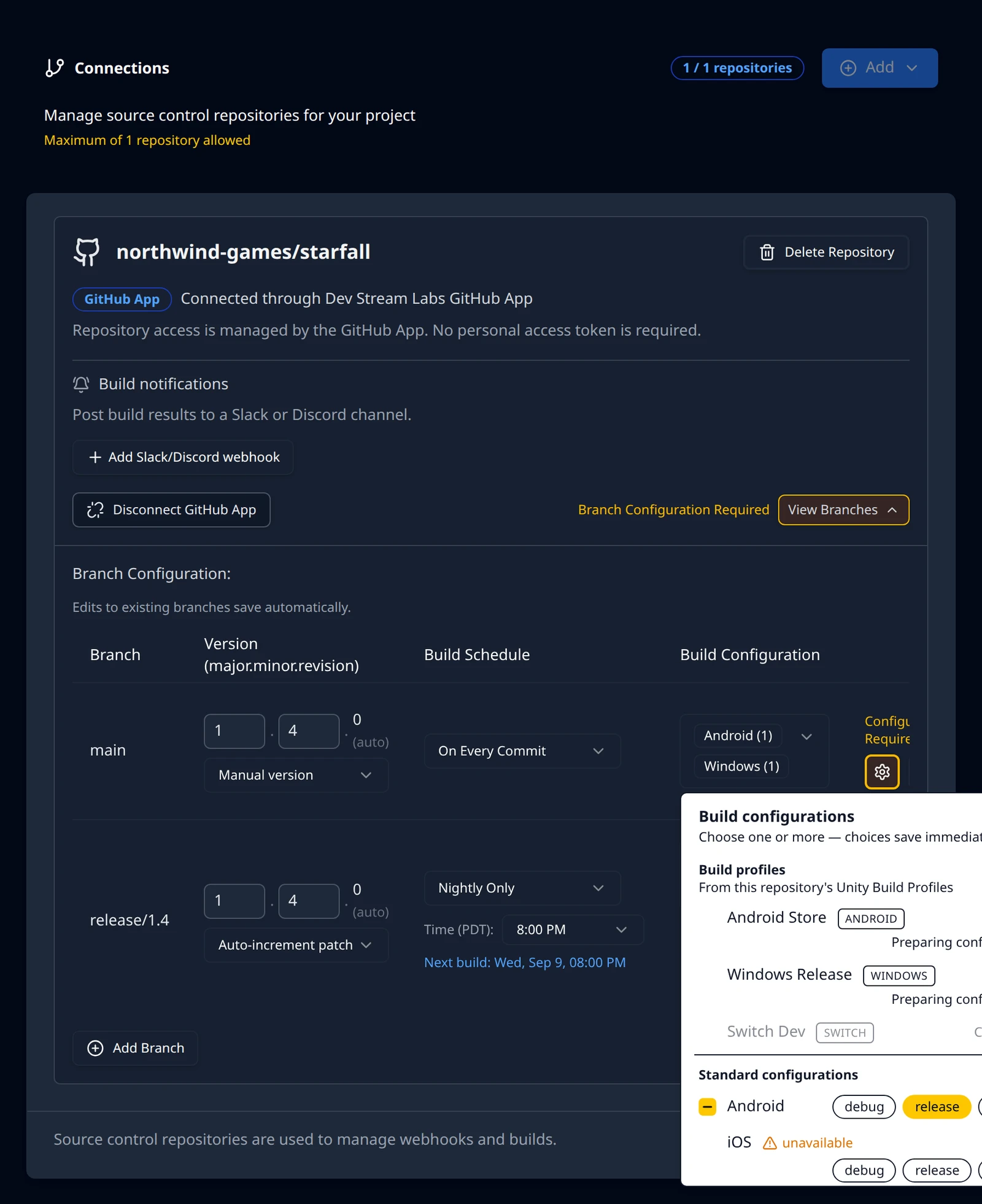
The section has a few states of its own:
| The section shows | Meaning |
|---|---|
| Analyzing project… | The scan has not finished. Profiles appear without a reload when it does; the page checks every ten seconds. |
| No Build Profiles found in this repository (looked in Assets/Settings/Build Profiles). | The scan finished and found none. The standard configurations still work. |
| Preparing configurations… | The profile was found and its configurations are being created. Usually a few seconds. |
| No longer in repo | A selected profile was renamed or deleted in the repository. You can deselect it; you cannot re-select it until it is back. |
| Coming soon | The profile targets a console platform the farm does not build yet. |
A draft row shows the profiles found on the repository's default branch, so you can pick them before the branch exists; the row is re-scanned on its own branch once you confirm it.
Project discovery
Discovery is the scan behind the Build profiles section, and it also reads the version the project itself asks for: Unity's ProjectVersion.txt, or the EngineAssociation in an Unreal .uproject. Its status is written under the Build Configuration cell so you do not have to open the picker to see it.
| Line under the cell | What to do |
|---|---|
| Scanning repository for Build Profiles… | Wait. The line disappears when the scan completes with nothing to report. |
| Project analysis failed; it retries automatically. | Usually the clone failed: check the credential on the card. The scan retries on its own once it can reach the repository. |
| 'release/1.4' hasn't been scanned yet -- its project version is checked once the branch is added. | Shown on a draft row that picked a branch other than the one already scanned. Confirm the row and the line resolves. |
| Your project is on 6000.1.5f1 and no builder has that version or newer. Contact the team. | No installed editor can serve the version the project pins. Email [email protected] with the version; installs are done by the team. |
| Your project is on 6000.1.5f1, but this project is configured for Unity 6000.0. Builds will be refused until they match. | The repository and the project's toolchain version are on different major.minor streams. Change one of them; the build machine will not switch streams on its own. |
When the exact editor is installed the version line says nothing, which is the common case. When only a newer patch of the same stream is installed, an informational line names the version the build will use and warns that the first build may take a little longer.
Pushes to branches you have not added
Build Stream only builds branches that are in the table. A push to any other branch is acknowledged to GitHub and dropped, which is correct but used to be invisible: no commit, no build, no error. Now the Connections page shows a notice at the top when that happens:
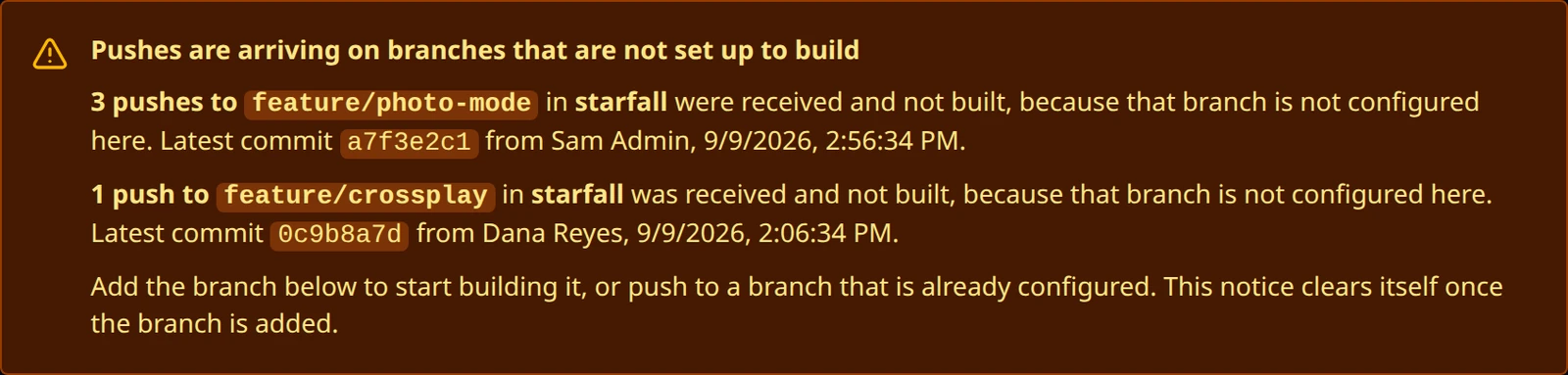
The notice is headed Pushes are arriving on branches that are not set up to build and lists each branch: how many pushes to it were received and not built, the repository, the latest commit's short hash, who pushed it and when. It closes with the fix: Add the branch below to start building it, or push to a branch that is already configured. This notice clears itself once the branch is added. There is no dismiss button; adding the branch is the only way it goes away, because the condition it describes is still costing you builds until then.
The notice is raised by GitHub connections and by Perforce check-in triggers. A Bitbucket push to a branch that is not in the table is dropped without a notice, and a Diversion commit on such a branch is rejected outright; see Add the branch first.
One repository per project
A project connects one repository today. The badge next to the Connections heading counts it, 0 / 1 repositories before you connect and 1 / 1 repositories after. Once a repository exists the page shows Maximum of 1 repository allowed under its description, and the Add menu is disabled. If a second create request reaches the server anyway it is refused with the toast Repository Limit Reached.
To connect a different repository, or the same one under a new credential, use Delete Repository on the card. The dialog states the cost: This permanently deletes "starfall" and all of its branch configuration from this project. It cannot be undone. The repository on your source control provider is not affected. Builds already produced are kept; the branch rows are not, so note them down before you delete. Several branches of the one repository can be added, each with its own version, schedule and configurations, so a main row building on every commit next to a release/1.4 row building nightly is the usual shape.
Something out of date or unclear? Email [email protected].